Can Qwen3-VL find the error in a screen recording?
A brief error can disappear between sampled frames. Here’s how Qwen3-VL timestamps video and how to check the moment it reports.
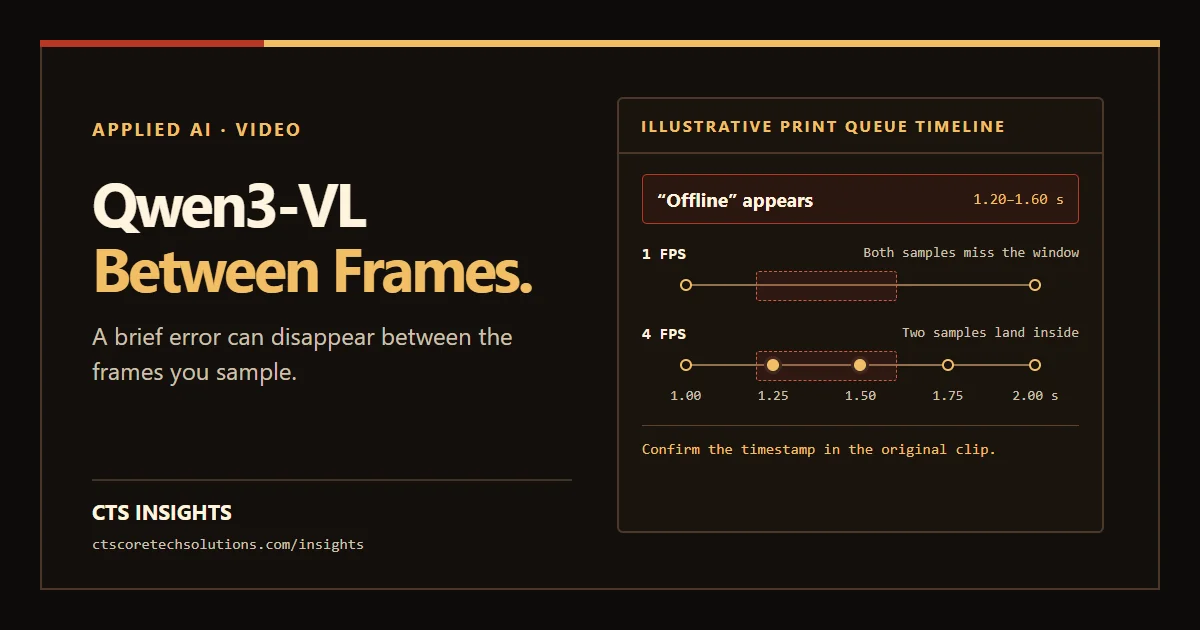
A print job fails. The queue flashes “Offline,” then the screen looks normal again. Qwen3-VL can connect what it sees in a video to a point in time. Whether it can point you to that flash starts with a simpler question. Did any of the sampled frames contain it? Qwen3-VL technical report
What goes into a timestamp
Qwen’s video examples show two ways to supply the recording. Give the processor the video and set fps to request a sampling rate, or give it a list of extracted frames and set sample_fps to describe their spacing. In the list example, that rate is used to determine the frame timestamps. If you supply your own frames, keep a record of where they came from in the original clip. Qwen’s video processing examples
The vision encoder turns the sampled images into features that are passed to the language model as visual tokens. The report describes a text timestamp before each small temporal group of visual tokens, such as a label for three seconds. That gives the model a time reference for what it sees in the group. Treat its reported time as a place to look in the original recording. Technical report, section 2.3
Run the failed print job twice
Make a short test recording with a visible “Offline” message. Before using the model, mark the first frame where the text can be read and write down the exact wording. Ask Qwen3-VL for the first visible error, its timestamp and the text on screen. Use the same clip, prompt and model settings at one frame per second, then repeat with a denser rate such as four frames per second. Compare both answers with the original and check which frames the processor used. This is a proposed test. Qwen’s video processing examples
Suppose the message is visible from 1.20 to 1.60 seconds in the test clip. If the sparse samples fall at 1 and 2 seconds, both can show a normal queue. A frame at 1.25 or 1.50 seconds would give the model something to inspect. Even then, check whether it read the text correctly. The sample times here illustrate the gap. Check the actual times for your clip.
Narrow the window before sampling more densely
More sampled frames can mean more visual tokens if the resolution and video budget allow it. Qwen’s README describes both per-frame resolution limits and a budget for the whole video. Record the actual sample times and frame dimensions when comparing two runs. On a longer recording, start sparsely to find a likely window, then sample that stretch more densely. If the sparse pass gives you no useful lead, check the area around the reported action in the original. A sparse pass can miss a brief error altogether. Qwen’s video processing examples
If you trim a clip for the second pass, put the result back on the original recording’s clock. Open the ticket’s timestamp yourself and check that the message is visible and legible there. If the evidence is clearer over a short range, give the next technician that range and the exact on-screen text.